> ## Documentation Index
> Fetch the complete documentation index at: https://docs.usepitboard.com/llms.txt
> Use this file to discover all available pages before exploring further.
# Check what each account has left
> Read each account's five-hour and weekly limits, when they reset and how long the account lasts at its rate.
pitboard shows how much each account has used of its five-hour and weekly limits, and when each limit resets. Check it before you switch Claude Code or OpenAI's Codex CLI to another account, to see which one has room.
## See usage
pitboard's item in the menu bar shows the account in use and the limit it is working against, such as **work 42%**.
Click it to open pitboard's menu. The menu lists every account and puts a check mark beside the one in use. Under each name is a line such as **5-hour 42%, weekly 12%**.
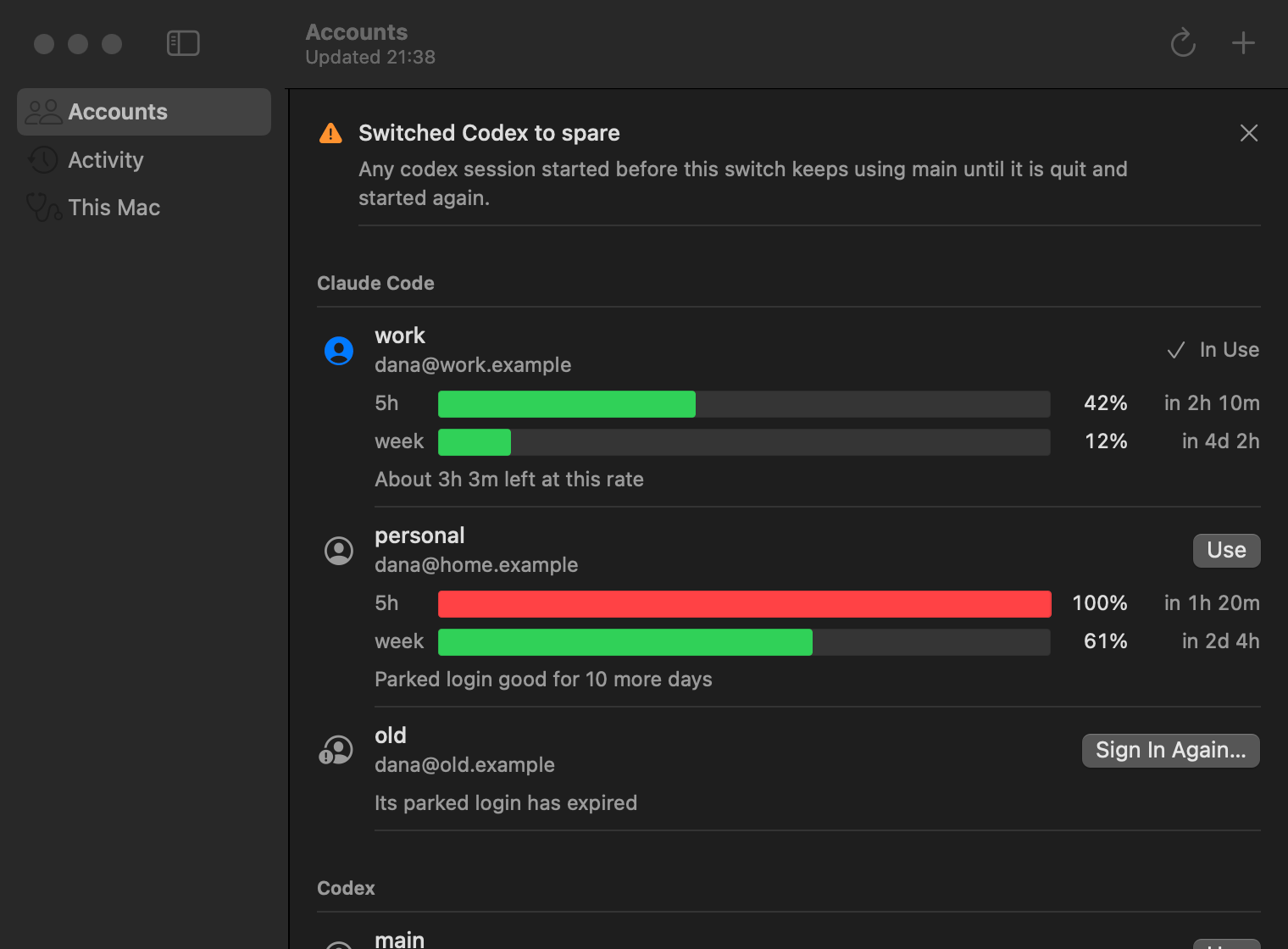
For bars, reset times and how long each account lasts, choose **Open pitboard** (Command-0). The pitboard window opens.
Run `pitboard`. It is the same as `pitboard status`.
```sh theme={null}
pitboard
```
```text theme={null}
● personal me@example.com signed in
5h ██████░░░░ 59% resets in 1h 10m
week ███████░░░ 73% resets in 5d 18h
about 48m left at this rate
○ work me@company.com ready · good for 26d 4h
5h █░░░░░░░░░ 12% resets in 3h 02m
week ████░░░░░░ 40% resets in 2d 4h
resets in 3h 02m
```
Once both tools have accounts, the app and the command line list each tool's accounts under its own heading. Each tool has its own account in use.
## Read the lines under each account
| What you see | What it means |
| --------------------------------------------------------------------------------- | ------------------------------------------------------------------------------------------------------------------------------------------------------------------------------ |
| A check mark in the menu, **In Use** in the window | The tool is using this account. |
| **5-hour 42%, weekly 12%** | The account has used 42% of its five-hour limit and 12% of its weekly limit. |
| **5-hour used up until 22:12** | The account has used all of its five-hour limit. The limit resets at 22:12. |
| A green, orange or red bar | How much of the limit is used: green under 70%, orange from 70%, red from 90%. |
| **About 3h 3m left at this rate** | At the rate the account has been used, one of its limits reaches 100% in about 3 hours 3 minutes. |
| **Resets in 3h 2m** | At the rate the account has been used, no limit reaches 100% before one of them resets, in 3 hours 2 minutes. |
| **Parked login good for 10 more days** | You can switch to the account, and its [parked login](/concepts/switching#parked-logins) lasts 10 more days. Codex accounts show no such line, because Codex states no expiry. |
| **Needs signing in again** in the menu, **Sign In Again** in the window | pitboard holds no parked login it can use for the account. See [Sign in to an account again](/guides/sign-in-again). |
| **Not named yet** in the menu, the tip **Give this account a name** in the window | The tool is signed in to an account pitboard has not enrolled. See [Add and manage accounts](/guides/accounts#add-the-account-you-are-signed-in-to). |
| What you see | What it means |
| ----------------------------------------------------------- | ---------------------------------------------------------------------------------------------------------------------------------------------------------------------------------------------------------------------------------------------- |
| `●` and `signed in`, or `○` | The tool is using this account, or not. |
| `ready · good for 26d 4h` | You can switch to the account. Its [parked login](/concepts/switching#parked-logins) lasts another 26 days and 4 hours. |
| `ready` alone | You can switch to the account. Codex accounts show this, because Codex states no expiry. |
| `ready · expires in 2d 3h · pitboard enroll work --sign-in` | You can switch to the account, but its parked login expires in under 3 days. Run `pitboard renew` to renew it, or the command shown to sign in to it again. To renew parked logins every day, see [Keep parked logins alive](/guides/renewal). |
| `login expired` or `nothing parked`, then a command | pitboard holds no parked login it can use for the account. Run the command shown, or see [Sign in to an account again](/guides/sign-in-again). |
| `signed in · not enrolled: pitboard enroll
The line on how long an account lasts appears once pitboard has at least three readings of the account, taken over 15 minutes or more. For how it is worked out, see [How usage is read](/concepts/usage#how-long-an-account-lasts).
## Read without asking, or ask again
To see the last numbers measured, without asking Anthropic or OpenAI, run:
```sh theme={null}
pitboard status --offline
```
pitboard asks nothing and renews no parked login. Each account ends with a line such as `measured 14:02, 3m ago · read without asking Anthropic`.
To ask about every account again, even one asked about moments ago, run:
```sh theme={null}
pitboard status --fresh
```
To do the same in the app, choose **Refresh** in pitboard's menu (Command-R).
For why numbers can be a few minutes old, see [How usage is read](/concepts/usage#how-often-pitboard-asks).
## When the numbers are old
When the command line shows numbers from an earlier reading, it says when they were measured, as in `measured 14:02, 3m ago`. A line such as `from Claude Code, measured 14:02` means the numbers are the ones Claude Code last recorded for the account in use.
If pitboard could not get newer numbers, the reason follows, as in `measured 14:02, 3m ago · Anthropic could not be reached`. The app shows the reason under the account in the window.
For what each reason means and what to do, see [Troubleshooting](/troubleshooting#usage-shows-old-numbers).
## Choose what the menu bar shows
In pitboard's menu, choose **Settings** (Command-Comma), then click **General**. Click the **Menu bar shows** pop-up menu, then choose one of these:
| Choice | What the menu bar shows |
| --------------------- | -------------------------------------------------------------------------------------------------- |
| **Account and usage** | The account in use and the limit it is working against, such as **work 42%**. This is the default. |
| **Usage only** | The percentage alone, such as **42%**. |
| **Icon only** | The speedometer icon alone. |
For which limit the percentage follows, see [Menu bar app](/reference/app#menu-bar-item).
With accounts of both tools, the menu bar follows whichever of the two accounts in use is closer to running out.
To move to an account with room, see [Switch accounts](/guides/switch).