See usage
- App
- Command line
pitboard’s item in the menu bar shows the account in use and the limit it is working against, such as work 42%.Click it to open pitboard’s menu. The menu lists every account and puts a check mark beside the one in use. Under each name is a line such as 5-hour 42%, weekly 12%.For bars, reset times and how long each account lasts, choose Open pitboard (Command-0). The pitboard window opens.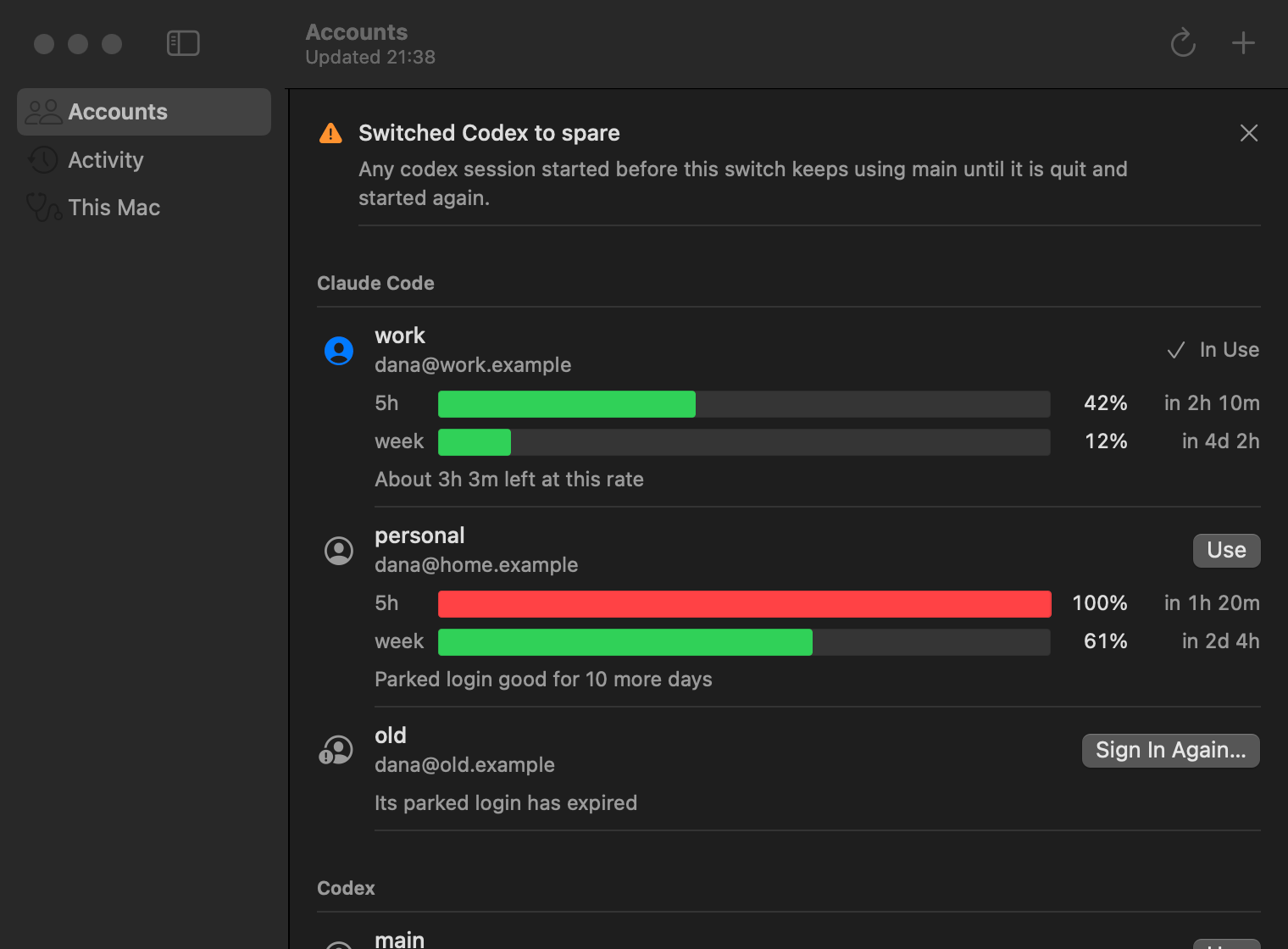
Read the lines under each account
- App
- Command line
Read without asking, or ask again
To see the last numbers measured, without asking Anthropic or OpenAI, run:measured 14:02, 3m ago · read without asking Anthropic.
To ask about every account again, even one asked about moments ago, run:
When the numbers are old
When the command line shows numbers from an earlier reading, it says when they were measured, as inmeasured 14:02, 3m ago. A line such as from Claude Code, measured 14:02 means the numbers are the ones Claude Code last recorded for the account in use.
If pitboard could not get newer numbers, the reason follows, as in measured 14:02, 3m ago · Anthropic could not be reached. The app shows the reason under the account in the window.
For what each reason means and what to do, see Troubleshooting.
Choose what the menu bar shows
In pitboard’s menu, choose Settings (Command-Comma), then click General. Click the Menu bar shows pop-up menu, then choose one of these:
For which limit the percentage follows, see Menu bar app.
With accounts of both tools, the menu bar follows whichever of the two accounts in use is closer to running out.
To move to an account with room, see Switch accounts.